
This guide helps you fix headset, audio, and microphone issues during an Avant assessment. If you are preparing ahead of time and want to check headset requirements, see the Headset Preparation & Requirements guide instead.
Audio Doesn’t Play in Your Headset
If you cannot hear test audio at all, start with the checks below.
Test Sound Outside the Assessment
Play this short sound file to test audio.
If you do not hear anything continue reading to fix it.
Check Physical Connection and Mute Buttons
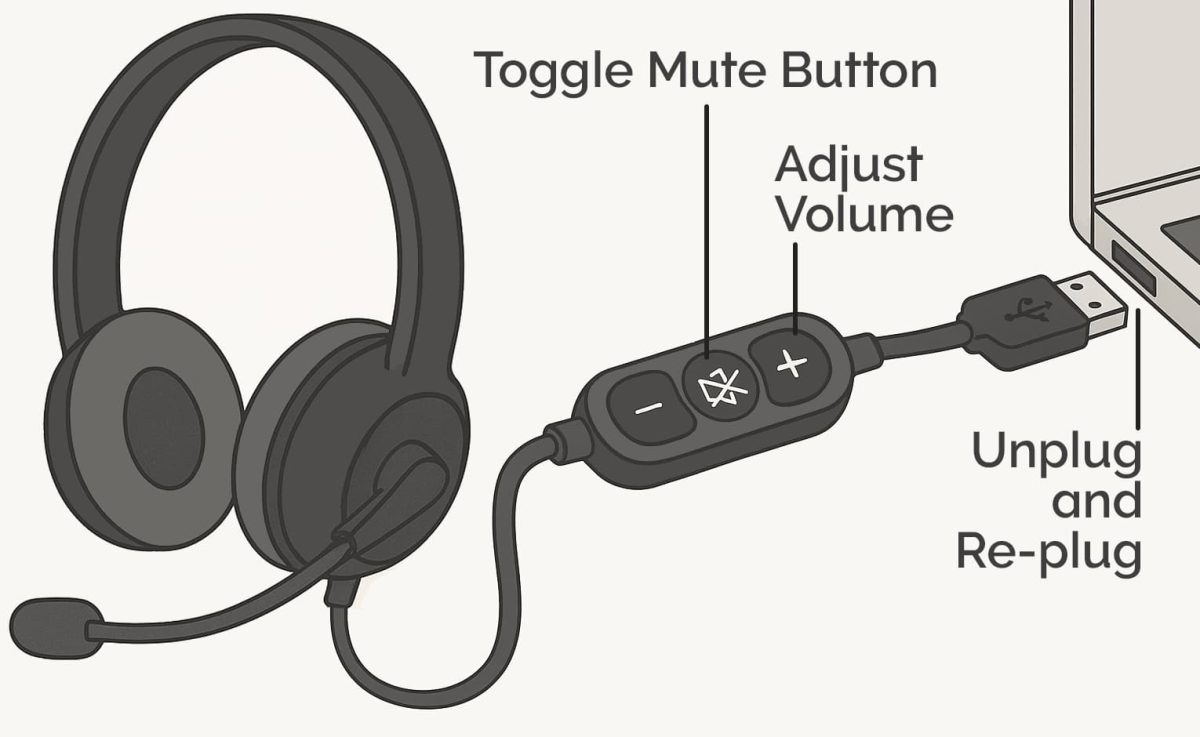
- Make sure the headset is plugged in securely
- Check for mute switches or buttons on the headset or cable
- Turn up volume using the headset controls, if available
- Unplug and re-plug the headset once
These physical issues are more common than software problems.
Make Sure the Computer Is Sending Audio to the Headset
Even when a headset is plugged in, your computer may still be using a different audio device.
Windows
Open Sound Settings
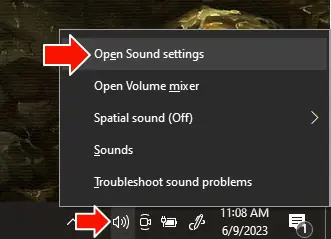
Under Output, select your headset
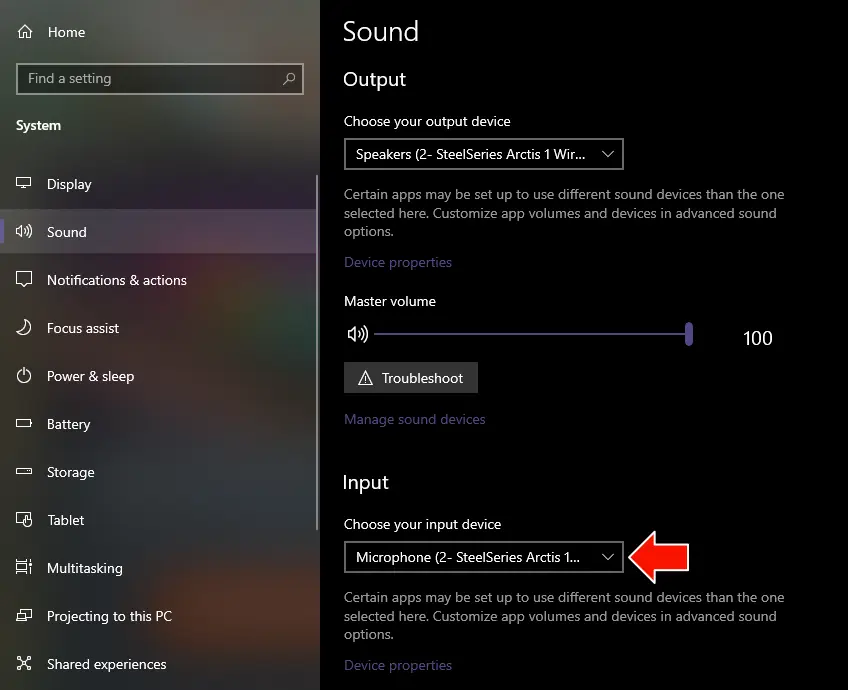
Play a sound and confirm audio comes through the headset
Mac OS
Open System Settings → Sound
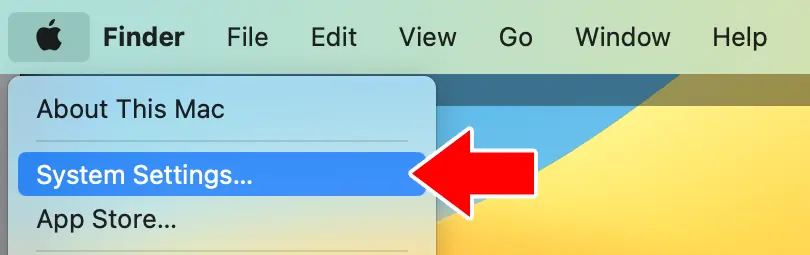
Select the headset under Output
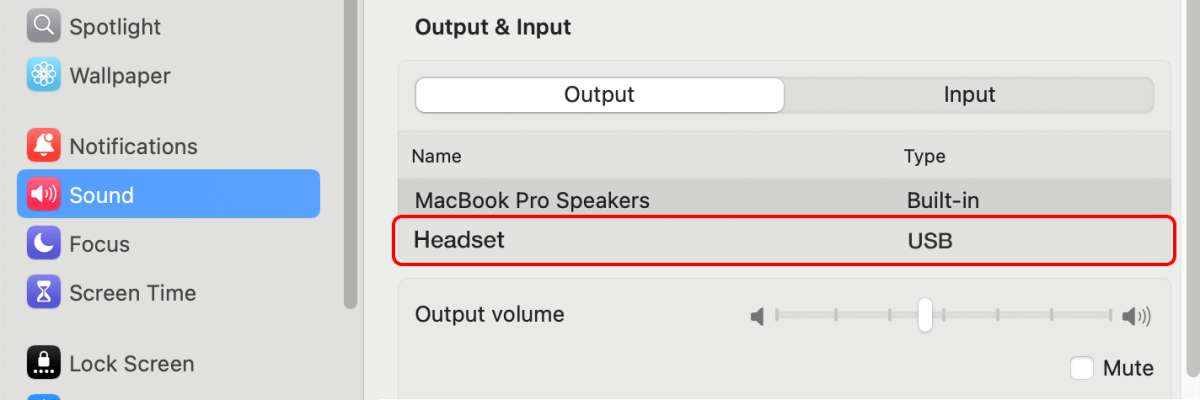
Confirm the output volume is not muted
Chromebook
- Open the system tray
- Select Audio settings
- Choose the headset as the output device
Microphone Isn’t Recording or Detected
If you can hear audio but spoken responses are not recording, focus on microphone access and selection.
Allow Microphone Access in Your Browser
Your browser must be allowed to use your microphone.
- Look for a lock or microphone icon in the address bar
- Open site permissions
- Confirm Microphone access is allowed
- Refresh the test page after changing permissions
If microphone access is blocked, spoken responses cannot be recorded.
Make Sure the Correct Microphone Is Selected
Your computer may be using a different microphone than the headset.
Windows
- Open Sound Settings
- Under Input, select your headset microphone
- Speak and check that input levels move
Mac OS
- Open System Settings → Sound
- Select the headset under Input
- Confirm the input level responds when you speak
Chromebook
- Open the system tray
- Select Audio settings
- Confirm the headset is selected as the input device
Test the Microphone Outside the Assessment
Use a voice recorder or another website to test recording.
- If the microphone does not work elsewhere, the issue is device-related
- If it works elsewhere, recheck browser permissions and input selection
Audio or Microphone Works Intermittently
If sound or recording works sometimes but cuts out or stops unexpectedly, try the following.
Re-establish the Connection
- Unplug and re-plug the headset
- Try a different USB port, if available
- Make sure no other application is using the microphone (video calls, screen recorders)
Refresh the Test Environment
- Refresh the browser page
- If needed, fully close and reopen the browser
Temporary audio conflicts can occur if permissions or device control changes mid-session.
Next Steps if Audio Still Isn’t Working
If audio or microphone issues continue after trying the steps above, the problem may be related to the device or headset rather than the assessment itself.
Try a Different Setup
- Use a different headset, if available
- Try a different computer
- Avoid Bluetooth headsets if you have a wired option
Don’t Continue With Missing Audio
If this happens during a scheduled assessment, do not continue testing with missing or partial audio. Your coordinator can advise on next steps.